
Chapter 9. Configuring CD24 and DM24 digitisers
Note: This chapter applies only to Güralp CD24 and DM24 digitisers. For other models, please refer to the relevant digitiser manuals.
Scream! distinguishes between configuration and control of digitisers. The most important difference is that a digitiser may be controlled through Scream! at any time whilst it is acquiring data, whereas changes to configuration options only take effect after a reboot (with consequent loss of data).
To change the configuration of any connected digitiser:
Locate the digitiser you want to configure. All connected digitisers have an entry in the source tree on the left of Scream!'s Main Window. If the digitiser is transmitting data through a remote server or EAM, you may need to “unroll” the entry for that server (by clicking on the
 icon) to see the digitisers connected to it.
Right-click on the digitiser's entry (
 - not the icon for the server or any Comxx icon).
Click Configure…. Scream! will then contact the digitiser and retrieve its current configuration, a process which will take a few seconds. When this is done, the Configuration set-up window will be displayed.
Once you are happy with any changes you have made in the Configuration Setup window, click UPLOAD to send them to the digitiser and reboot. This will take around a minute.
To control a digitiser while it is running, either right-click on the digitiser's entry in the list and click Control…, or double-click the entry. If the digitiser is already highlighted, you can simply click  . In either case Scream! will contact the digitiser to retrieve control information and display the Control window. The options you can control immediately are:
the type of sensor you are using (which affects which other controls are available),
GNSS power cycling options,
the short-term and long-term average values for triggering (but not which streams perform the trigger, or which are output by it - see section 9.3),
the length of the pre-trigger and post-trigger periods,
calibration signal options, and
mass control functions.
Some of these options can also be altered in the Configuration set-up window. For more information on the Control window, see Chapter 10.
9.1 System ID
The System ID pane gives information about the digitiser and its internal software, and allows you to change timing source parameters.
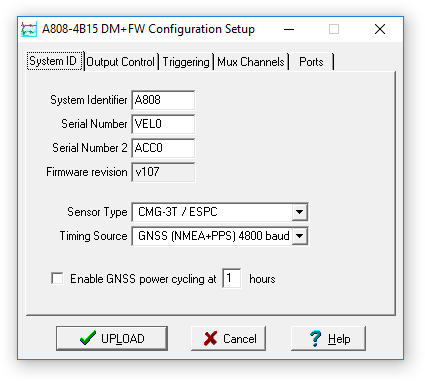
System Identifier and Serial Number : The digitiser type is identified by its system identifier and serial number. Every data and status block generated by the digitiser includes these two fields at the beginning, so that the block’s origin can be identified. On delivery from the factory, the system identifier and the serial number are set production reference numbers, but almost any combination of letters A-Z and numbers can be used, such as an abbreviation of your institution’s name etc. The system identifier can be up to five characters long, whilst the serial number cannot be longer than four.
Sensor Type : If the sensor attached to the digitiser is a Güralp velocity sensor, useful seismometer functions (such as sensor locking, centring, and calibration) can be controlled through the digitiser. The Sensor Type that you set here determines which functions will be available through the Scream! digitiser configuration set-up interface or through interactive commands.
Timing Source : The digitiser needs to be able to time-stamp accurately all data that pass through it. It can set its clock either by receiving time signals from a GNSS satellite network, using an attached compatible unit (NMEA+PPS output) or by taking time information from a central site (stream sync mode). In stream sync mode, the digitiser expects to receive two-byte packets from the central timing source, which may have its own GNSS unit, or take signals from one of the radio time standards. Choose the mode you require from the drop-down menu.
Most GNSS modules use a fixed 4800 baud rate. However, for non-standard applications, the baud rate can be controlled on some digitisers, so a variable baud option is available in these cases.
Enable GNSS power cycling : If you are using a GNSS unit to receive time signals, but do not experience significant drift in the system's clock (for example, in an environment with a stable temperature), you can save power by selecting Enable GNSS power cycling. With this option in use, the GNSS time is only checked at intervals of a specified number of hours. Disabling this option keeps the GNSS unit running constantly; if you have ample power, this will give the most accurate results. You can choose any whole number of hours for the interval.
9.2 Output control
The Output control tab allows you to configure which data streams are sent to Scream! from the digitiser.
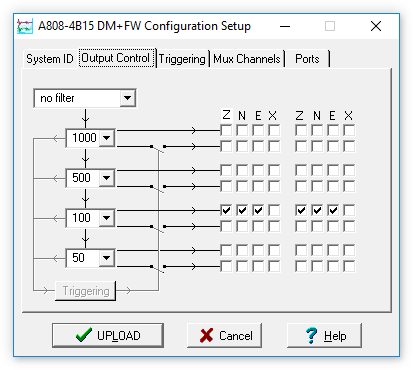
Güralp digitisers initially sample incoming data at a high rate (e.g. 2000 Hz for the DM24), which is then filtered and reduced to a lower rate (decimated) using an on-board digital signal processing unit, or DSP. The DSP has several filtering-decimation stages, which run one after the other. Stages which can produce output are called taps. The Güralp DM24 and CD24 digitiser can both output data from four taps simultaneously.
Each configurable tap can be set to a different decimation factor by choosing values from the drop-down menus on the left. Decimation factors of 2, 4, 5, 8, and 10 are available. The numbers visible in the drop-down menu of each tap are the data rates that each of the possible decimation factors will provide, given the settings of the taps above it. Only integer (Hz) data rates are allowed: thus, for example, if one tap produces data at 25 Hz, the only possible further decimation factor is 5.
To the right of each decimation factor menu is a grid of check-boxes. These boxes mark which streams of data to generate at each sample rate. The screen-shot above shows a possible configuration for 6-channel digitiser with two triaxial instruments connected. Every channel of the digitiser may be output at any tap; currently, all three axes of both instruments are being output at Tap 3 (100 Hz).
If you want to change the names used for the channels, click in the white box containing a Z in the above picture, and type a letter or number. It will name the channels with a sequence of letters or numbers beginning with the one you choose (e.g. A, B, C; 2, 3, 4; 9, A, B), unless you type Z in which case they will revert to Z, N, and E.
Each combination of channel and tap has two check-boxes. The upper check-box of each pair activates continuous output, whilst the lower activates triggered output. In the example above, the digitiser will output data continuously for all six channels at Tap 3, but never for any other taps. You cannot tick both continuous and triggered output for the same channel and tap.
When you enable a triggered stream, the digitiser will output data in that stream only when a particular set of trigger criteria are met. This is pictured in the window as a switch. For example, to generate high-rate data from Tap 2 only when an event registers at some other tap, the lower check-boxes of Tap 2 should be ticked.
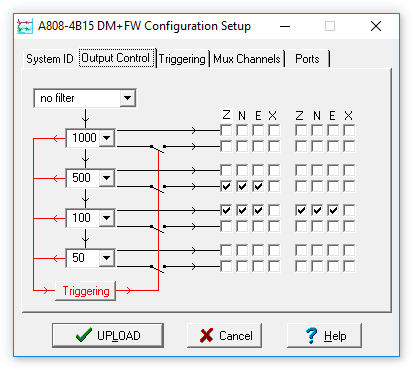
With this configuration uploaded, Tap 3 will continue to produce output at all times, but Tap 2 will now also emit data whenever the trigger criteria are met. The Triggering button is now shown in red ( ) to remind you that the trigger is active.
Every ticked box in this window will give rise to a data stream coming from the digitiser. These streams will be displayed in Scream!'s Main Window when Scream! first receives some data from it.
Note: Each stream is identified by a unique "Stream ID". See section 5.3.1 for an explanation of the encodings used to generate these.
9.3 Triggering
In its standard configuration, the digitiser outputs continuous data at a sample rate you specify. In addition to this, most Güralp digitisers can run a triggering algorithm on the data they acquire. This allows you to record data continuously at a relatively low sample rate, but record at a much higher sample rate during short periods when the trigger is active. The parameters controlling the triggering algorithm, and controlling the data output once the system is triggered, are all selectable by the user, permitting maximum flexibility of operation and the most efficient use of available storage space.
The digitiser can be set up for triggered output. This means that it will generate certain data streams only when a particular trigger criterion is met. The trigger criterion can be refer to data from the same or some other stream. For example, you could use a later tap (with a lower sample rate) as a trigger for output from an earlier, higher sample-rate tap. Scream! also allows you to configure each digitiser to receive trigger signals from other digitisers (external triggering).
To create a new stream with a trigger, open Scream!'s Digitiser configuration window for the relevant digitiser, and click on the Output control tab. In the Output control pane, a tap which gives rise to a triggered stream has a tick in the lower row of its grid of check-boxes. You cannot configure the trigger criteria until you have selected at least one stream to be affected by the trigger.
Note: To remove triggers, remove the criteria before disabling the triggered streams. You cannot modify the triggering criteria unless at least one stream is selected for triggered output.
Once you have decided which streams should be output when the trigger is activated, you will be able to click on the  button to describe the trigger condition. Alternatively, click on the Triggering tab at the top of the window.
Either action will open the Triggering pane:

There are two triggering algorithms which Güralp digitisers can use. However, not all models can use both methods. Scream! will find out from the digitiser whether its on-board software supports each method.
In addition, some digitisers support external and software triggering.
9.3.1 STA/LTA
The STA/LTA algorithm applies a simple
(Short-Term Average) ÷ (Long-Term Average)
calculation to the triggering stream. It works by identifying sections of an incoming data stream when the signal amplitude increases. The purpose of taking a short term average, rather than triggering on signal amplitude directly, is to make it less likely that spurious spikes or generally elevated background noise will trigger the device. Averaging also introduces an element of frequency selectivity into the triggering process.
You can select which tap is used as the input data for the triggering calculations using the Data source drop-down menu. The tap does not have to be selected for continuous output for you to be able to use it here.
Any or all of the channels available at that tap may be used to determine a trigger. You can select which channels are considered by ticking the boxes in the Channel column of the table. If any of the ticked channels passes the trigger condition, the trigger will activate, and will not de-trigger until all of the ticked channels have fallen below their respective ratio values.
The STA and LTA columns allow you to set, in seconds, the intervals over which the two averages are calculated. Typically, the time interval for the short term average should be about as long as the signals you want to trigger on, while the long term average should be taken over a much longer interval. Both the STA and LTA values are recalculated continually, even during a trigger.
The Ratio column determines by what factor the STA and LTA must differ for the trigger to be activated. Finding the ratio most suited to your needs is best done by experiment. Too high a value will result in events being missed, while too low a value will result in spurious non-seismic noise triggering the system. Like the averages, their ratio is continuously recalculated for all components.
Note: None of the boxes are allowed to be empty, and so you will need to over-type any old value with your new one. Alternatively, you can use the
and  cursor keys to change the values.
For example, setting the STA to 1 second, the LTA to 10 seconds and the Ratio to 4 would give rise to the trigger behaviour depicted in the following illustrations:
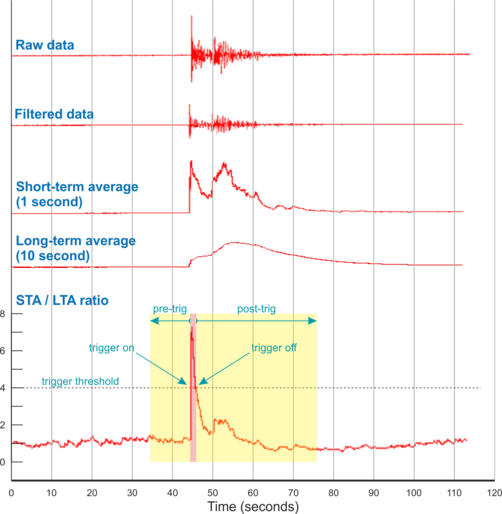
Usually, the values of the two periods, and of the Ratio, will be the same for all ticked channels. For convenience, Scream! will automatically fill in other values to match ones you enter. If you want to use different values for some channels, you should clear the Common values check-box before altering them.
Once you have enabled STA/LTA triggering on a particular channel, you can use the Control window to change the values of the STA and LTA periods, together with the Ratio, without restarting the digitiser (see Chapter 10).
Since it is not generally advisable to trigger from broadband data, the digitiser provides a set of standard bandpass filters to apply to the data streams before they are tested for the trigger condition. This filtering serves to maximise sensitivity within the frequency band of interest, and filter out noise outside this band. You can select which bandpass filter to use from the Bandpass filter drop-down menu. The corner frequencies of the pass band of the filter are determined by the Nyquist frequency, which is given by the sampling rate of the triggering data. The three filter options have pass bands between 10% and 90%, between 20% and 90% and between 50% and 90% of the data’s Nyquist frequency, respectively.
The possible filter configurations are:
Tap #. | Rate (samples/s) | Bandwidth 1 (Hz) | Bandwidth 2 (Hz) | Bandwidth 5 (Hz) |
0 | 200 | 10 – 90 | 20 – 90 | 50 – 90 |
1 | 100 | 5 – 45 | 10 – 45 | 25 – 45 |
50 | 2.5 – 22.5 | 5 – 22.5 | 12.5 – 22.5 | |
40 | 2 – 18 | 4 – 18 | 10 – 18 | |
25 | 1.25 – 11.25 | 2.5 – 11.25 | 6.25 – 11.25 | |
20 | 1 – 9 | 2 – 9 | 5 – 9 | |
2 | 50 | 2.5 – 22.5 | 5 – 22.5 | 12.5 – 22.5 |
25 | 1.25 – 11.25 | 2.5 – 11.25 | 6.25 – 11.25 | |
20 | 1 – 9 | 2 – 9 | 5 – 9 | |
10 | 0.5 – 4.5 | 1 – 4.5 | 2.5 – 4.5 | |
8 | 0.4 – 3.6 | 0.8 – 3.6 | 2 – 3.6 | |
5 | 0.25 – 2.25 | 0.5 – 2.25 | 1.25 – 2.25 | |
4 | 0.2 – 1.8 | 0.4 – 1.8 | 1 – 1.8 | |
2 | 0.1 – 0.9 | 0.2 – 0.9 | 0.5 – 0.9 | |
3 | 25 | 1.25 – 11.25 | 12.5 – 11.25 | 6.25 – 11.25 |
10 | 0.5 – 4.5 | 1 – 4.5 | 2.5 – 4.5 | |
5 | 0.25 – 2.25 | 0.5 – 2.25 | 1.25 – 2.25 | |
4 | 0.2 – 1.8 | 0.4 – 1.8 | 1 – 1.8 | |
2 | 0.1 – 0.9 | 0.2 – 0.9 | 0.5 – 0.9 | |
1 | 0.05 – 0.45 | 0.1 – 0.45 | 0.25 – 0.45 |
9.3.2 Level
Using the Level triggering method, a trigger is generated whenever any of the ticked components reaches a certain level above the baseline. You can select which tap is monitored from the Data source drop-down menu, and the channel(s) to be considered from the Channel column of the table. The values in the Level column are the number of counts above the baseline that channel must reach before a trigger is generated.
As with the STA/LTA method, the values of the Level will often be the same for all ticked channels. If you want to use different values for some channels, you should clear the Common values check-box before altering them.
Once you have enabled Level triggering on a particular channel, you can use the Control window to change the level at which the system triggers without restarting the digitiser (see Chapter 10).
If an InfoBlock has been loaded into the digitiser, then the digitiser will interpret the level values so that they are in physical units (e.g. µg for accelerometers).
Note: For level triggering configurations, it is highly recommended that you enable the high-pass filter in the “Output Control” page. This removes any DC offsets and/or long-term drift from the data. In the illustration below, the drift has caused a false trigger from the unfiltered data. No such problem exists with the filtered data.
9.3.3 External triggering
When a digitiser or digital sensor triggers, as well as recording or transmitting any extra data, it can also transmit the fact to connected devices. You can configure other digitisers to respond to this signal by triggering themselves. (This is an option which you should specify at the time of manufacture.)
As an example, to instruct a stand-alone digitiser with digital inputs to respond to triggers generated by an attached digital sensor:
Open the Configuration set-up window for the digital sensor, and tick Enable External Trigger Output to make it send triggers to connected devices.
UPLOAD the new configuration to the digital sensor.
Open the Configuration set-up window for the digitiser, and tick Enable External Trigger Input to make it listen for triggers coming from the digital instrument, and record data from attached analogue instruments when it receives one (depending on its Output control configuration).
UPLOAD the new configuration to the digitiser,
If a digitiser has both Enable External Trigger Output and Enable External Trigger Input selected, it will record data when it receives an external trigger as if it had triggered itself, but it will not send that trigger on to other digitisers. It will only send a trigger message if its own triggering criteria are satisfied.
For full details on external triggering, see the manual for your digitiser or the technical notes available on the Güralp website.
9.3.4 Pre-trigger and post-trigger recording
In order to capture all of a seismic event, it is often useful to be able to record data immediately preceding the trigger. Güralp digitisers have an internal buffer of some seconds which allows this data to be added to the triggered stream. Pre-trigger data are particularly useful for emergent-type signals, where the system does not trigger until one phase after the first arrival. In addition, to ensure that the coda of each event is included, some seconds of data are recorded after the system de-triggers.
The two boxes at bottom right of the Triggering pane allow the user to set the pre-trigger and post-trigger periods, in seconds. These values determine the minimum length of time during which data will be saved before the trigger condition occurs, and after it has lapsed. Regardless of the intervals chosen, the data in the triggered streams will begin on an integer second.
9.4 Mux Channels
Güralp digitisers provide a range of slow-rate auxiliary channels for reporting the system's state of health and other diagnostic information, known as multiplexed (“Mux”) channels. The number of Mux channels depends on the model and configuration of your digitiser. Generally, three channels are used to report the sensor mass position. In addition to these, and depending on the hardware and digitiser options selected, up to twelve Mux channels may be configured for the user's own purposes.
Some digitisers have a separate AUXILIARY connector which can be used to input signals which are digitised to these channels.
The collection and transmission of Mux channels is controlled using the Mux Channels pane:
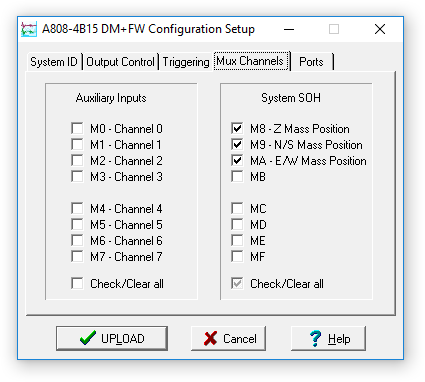
If a tick is placed in the box next to a channel, its data will be collected and transmitted as a data stream in GCF format, just as with the normal data channels. To indicate that the data comes from a Mux channel, the Stream ID will take the form ****Mx, where M stands for Mux and x is a hexadecimal integer (i.e. 0 – 9, and A – F for 10 through 15).
Depending on the type of digitiser you connect, Scream! may be able to replace the legends with descriptions appropriate to the digitiser. For example, on DM24 digitisers, the Mux channels M8, M9 and MA appear with the legends Z, N/S and E/W Mass Position respectively, as shown above.
9.5 Ports
The Ports pane of the Configuration set-up window allows you to program the baud rate and number of stop bits for the digitiser's output port.
The baud rate you choose must satisfy two conditions:
It must be high enough to allow all the transmission of all data generated by the digitiser at the sampling rates you have chosen. For three streams of data at 100 Hz, for example, 9,600 baud will usually be sufficient. If you wish to transmit 200 Hz data, however, the baud rate must be at least 19,200.
It must be low enough to fit within the operating range of the telemetry equipment you are using. While many serial modems often offer transfer rates in excess of 115200 baud, the telephone or transmission lines may not support these rates. The same holds true for radio telemetry.
Usually, the transmit and receive rates of the data port will be the same. If not, you may select different data rates by clearing the Identical Tx/Rx rates check-box.
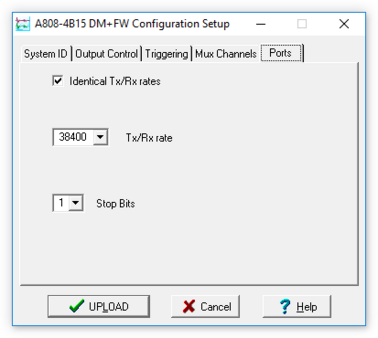
The Stop Bits option allows you to choose whether the serial link uses one or two stop bits. In most cases this can be left at one, although two may be required if you are sending data over ‘difficult’ transmission lines (for example, some types of radio link). Using two stop bits will add an additional 10% overhead to the data.
You will also need to set the same baud rate for Scream's local serial port, as well as for the NAM, EAM or other receiving communications device (if you are using one). In Scream!, you can configure a serial port by right-clicking on its icon( , not that of the digitiser) and selecting Configure… from the pop-up menu: see section 4.1. If you are using an additional communications device, you should consult its documentation to learn how to set its baud rate.