Guralp Systems Limited

Previous Next

Introduction First encounters Installing the CD24 Configuration with Scream! Calibrating the CD24 Command line interface Updating the CD24  Connector pinouts  Specifications Revision history

Installing the CD24

Connections

The digitizer

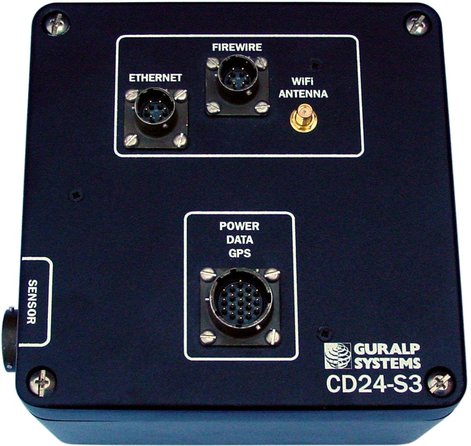
The CD24's output connectors are located on the lid. The sensor input is located on the side. The digitizer can be supplied with a number of options, so not all the connectors may be present on your instrument. The input connector is configured to connect directly to one of GSL's sensors and has all the necessary power and control functions.

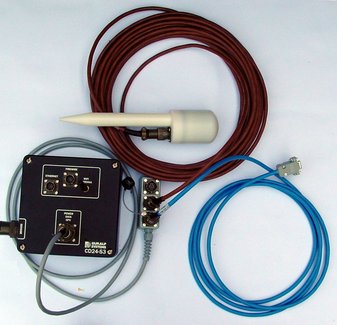
All CD24's have a 19-pin mil-spec connector. The supplied breakout box provides individual connectors for the power, data and GPS, or you can make up your own cable if you prefer. The CD24 may also have connectors for the FireWire, Ethernet or Wi-Fi interfaces.

The breakout box

In addition to the cable to the instrument, which is moulded into the case, the breakout box provides

You may need to attach a suitable connector to the power cable provided. The CD24 draws a nominal current of 55 mA from a 12 V supply when in use; thus, using a 12 V, 25 Ah sealed heavy-duty lead-acid battery, you should expect the digitizer to operate for more than a week without recharging.

Setting up the Ethernet interface

CMG-CD24 digitizers with Ethernet features installed use an embedded Lantronix Wi-PortNR module to provide the network interface. This module can be configured using a built-in Web server or via the serial port.

Before you can access the Web server, however, you will need to assign the device an IP address. This can be done using Lantronix' DeviceInstaller utility for Microsoft Windows, using a DHCP server or the via the serial port. You will need a PC with a network interface installed or RS232 connector.

Using DeviceInstaller

Using DHCP

If you cannot install DeviceInstaller on your PC, or do not wish to, you can also get access to the CD24 using a standard DHCP server. In most cases you will need to have administrative privileges to do this.

Configuration with the Web interface

Once you have access to the Wi-PortNR's Web interface, you can configure it with its proper settings.

Setting up wireless networking

CMG-CD24 digitizer's with wireless features installed use an embedded Lantronix Wi-Port module to provide the network interface. This module can be configured using the DeviceInstaller utility for Microsoft Windows, using a DHCP server or serial port. You will need a PC with a wireless card installed or RS232 connection.

You may find it easiest to gather together all the Wi-Fi hardware before taking it into the field, and configuring it from a local wireless-enabled PC.

CMG-CD24 digitizer's with the wireless networking option also have an ETHERNET port for attaching to a wired network. You can switch between the wired and wireless interfaces using DeviceInstaller.

There are two types of wireless network topology supported by the Wi-Port.

Ad hoc networks are easy to set up, but they are only suitable with a small number of hosts. In seismic networks, infrastructure mode is normally preferred, since sensors do not need to communicate with each other.

Using DeviceInstaller in an infrastructure network

Using DHCP in infrastructure mode

If you cannot install DeviceInstaller on your PC, or do not wish to, you can also get access to the CD24 using a standard DHCP server. In most cases you will need to have administrative privileges to do this.

Using “ad hoc” mode

If you do not have a wireless router or access point, you can configure your computer to set up an ad hoc wireless network when the CD24 comes within range.

To configure Windows XP to set up an ad hoc wireless network:

Configuration with the Web interface

Once you have access to the Wi-Port's Web interface, you can configure it with its proper settings.

Installing wireless hardware

The small antenna supplied with the CD24 is adequate for initial testing or temporary installations with an access point within 50 m of the instrument.

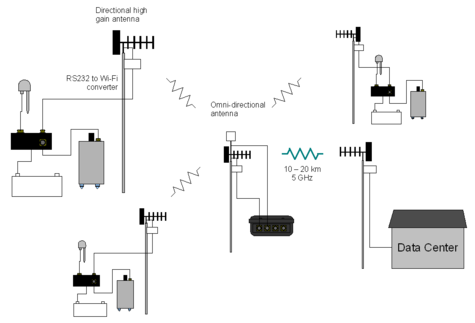
To send data over a larger distance, or if the line of sight between the antenna and the access point is blocked, you will need to use a larger and more powerful antenna.

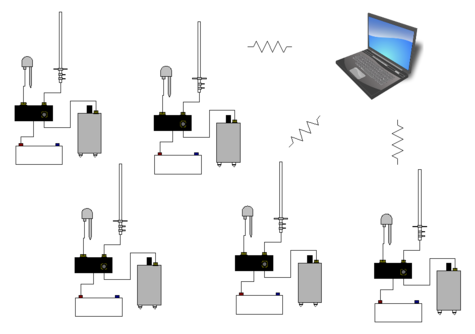
In infrastructure mode, you can reduce the power requirements by using a directional antenna pointed at the location of the access point. The access point does not need to be permanently present. For example, you could set up an array of CD24 instruments with antennas pointed towards a prominent natural feature with line of sight to all the instruments, and access them all from this location using a laptop PC.

Setting up using the serial console

Setting up the PC's serial Port

To access the Wi-PortNRs configuration via its serial interface connect the secondary serial input to an RS232 port. Then configure the terminal program (HyperTerminal in Windows) to;

Configuring the CD24's serial ports

Once you have access to the Wi-PortNR's serial interface, you can configure it with its proper settings. The serial console will show the current firmware revision and the MAC address. And ask you to press Enter to configure the system.

The Wi-PortNR has two serial channels. Channel 1 (normally port 10001) is connected to a serial console which is exposed on the power port of the breakout box. If you have problems connecting to the CD24, you can attach a standard Güralp Systems power/data cable to this port and use Scream! to access the console. Channel 2 (port 10002) is connected to the CD24's digital output, unless you have connected a serial data cable from the breakout box to a computer. If the breakout box is connected, the CD24 will send data streams through that interface rather than to the Wi-PortNR. For full information on the Wi-PortNR's configuration options, please refer to the Wi-PortNR documentation, which is available on the Lantronix Web site, http://www.lantronix.com/

Configuring the Ethernet port

To configure the Ethernet port

Configuration via the Serial Port

Once a connection has been made to configure the wi-fi port

Configuring the built-in digitizer

Autonomous CD24 installations will need to be configured before deployment. You can do this either

using the graphical interface provided by Scream! (see chapter 4, page 37), or

Both methods provide full access to the configuration options of the built-in digitizer.

In particular, CD24 can operate in a number of filing modes. These modes determine whether the unit stores data in its on-board Flash memory, sends it over the serial link in GCF format, or does some combination of these. See section 4.2, page 52, for more details.

Downloading data over FireWire

The easiest way to download data over Firewire is to connect a suitable disk to the FireWire port of the CD24 and power cycle the instrument.

If you have ordered a CD24 with the powered FireWire option, you can attach the disk directly to the CD24 with no additional connections. Otherwise, you will need to connect the disk to a power source through the supplied adapter.

When the sensor restarts, it will automatically detect the disk and flush all new data to it.

If you do not want to restart the instrument, you can also flush data to disk manually:

Reading CD24 disks

The CD24 uses a special disk format, DFD, for recording data. This format is also used by other Güralp digitizers such as the DM24.

You can read this data into a PC using Scream! or the Windows ReadSCSI or gcfxtract utilities, which are freely available from the Güralp Systems Web site. Linux and Solaris command line utilities are also available for reading data from a DFD disk.

The DFD format is not the same as that used by the Güralp Systems DCM data module, which uses a FAT32-compatible journalling file system.

Güralp Systems can provide fully-tested disks with FireWire and USB connectors. Alternatively, a third-party FireWire disk may be used (although compatibility is not guaranteed.)

To read a disk using ReadSCSI:

You can also read disks with Scream!. This allows you to view data in the process of being transferred, but is slightly slower, because Scream! does not read data in strict order. To read a disk with Scream!:

Receiving data in Scream!

There are several ways a CD24 instrument can connect to Scream!:

To connect to a CD24 over the network:

Previous Next

Introduction First encounters Installing the CD24 Configuration with Scream! Calibrating the CD24 Command line interface Updating the CD24  Connector pinouts  Specifications Revision history